🟢 🇩🇪 Skrime VPS IPV6 Only

Skrime - Paramétrage
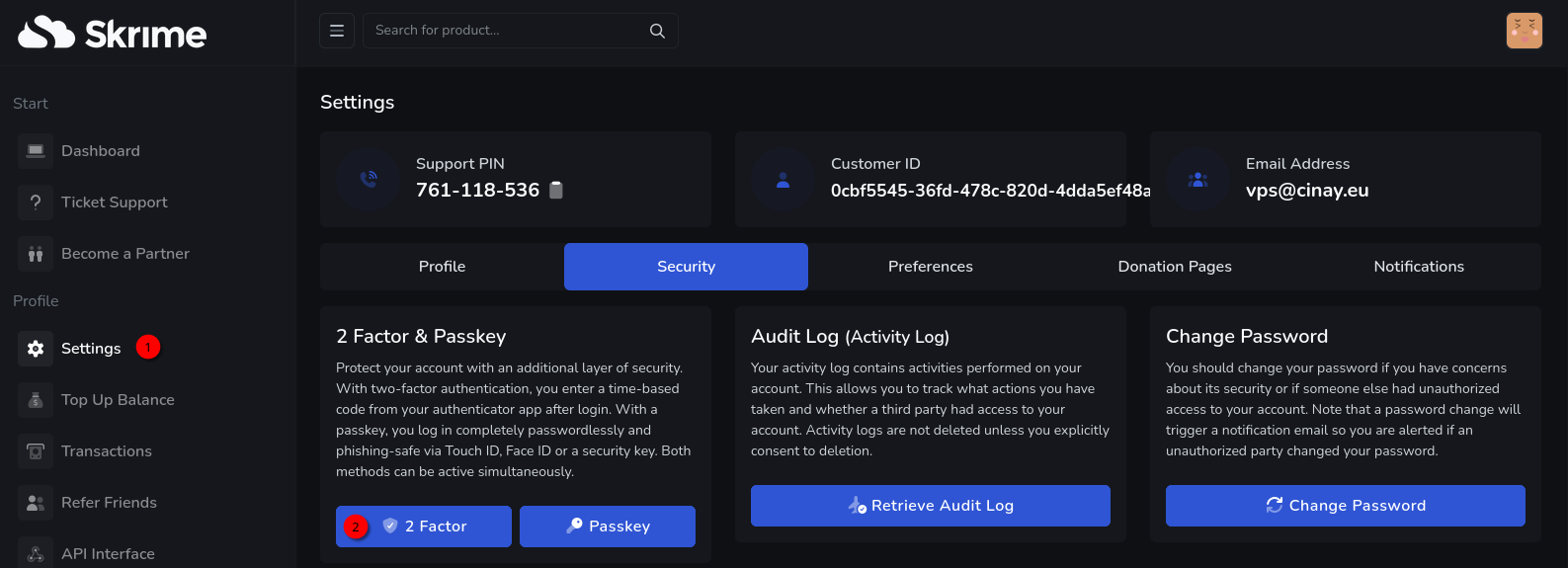
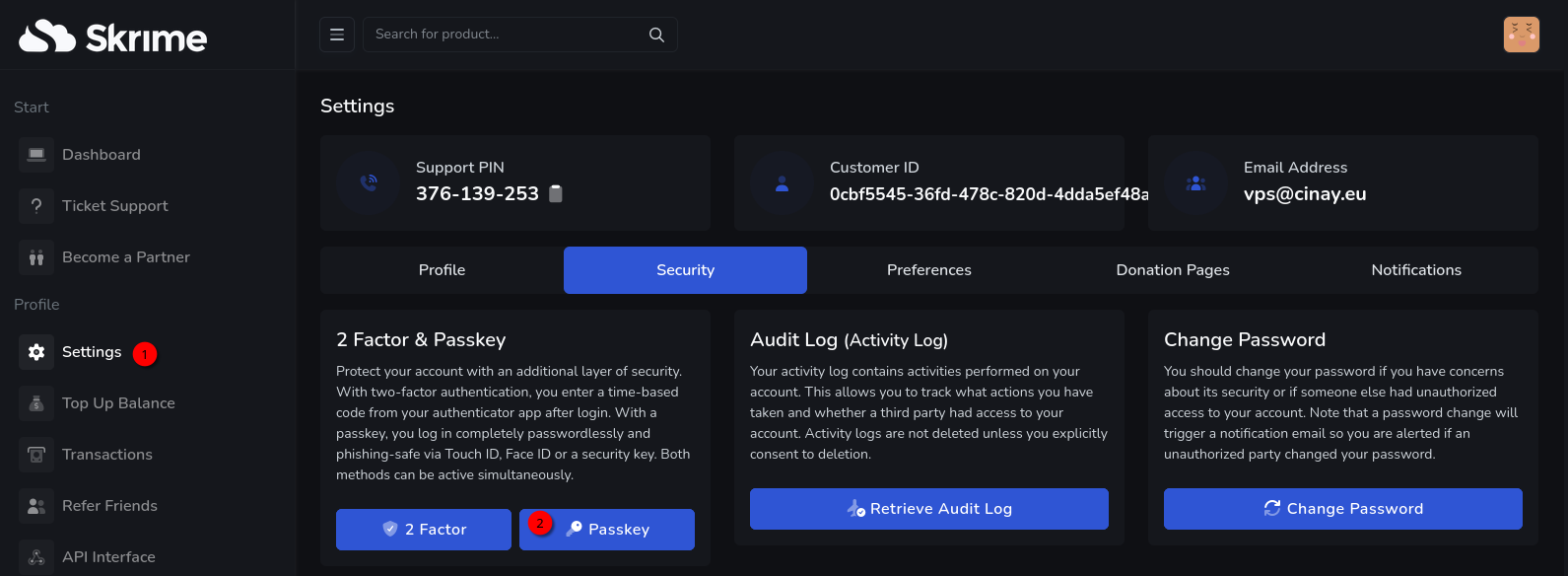
Double authentification
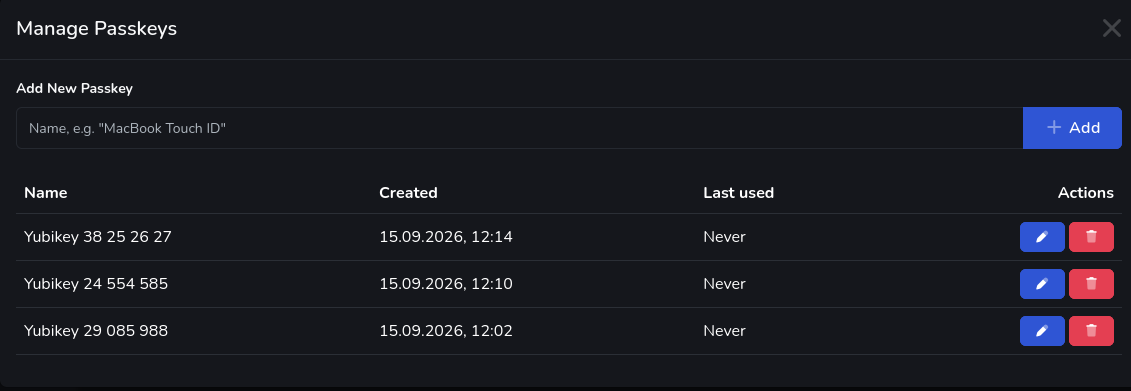
PassKey
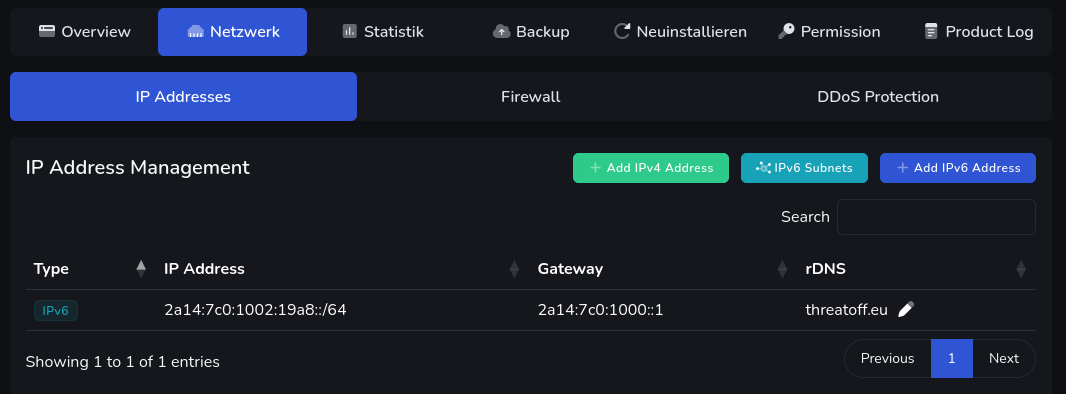
EPYC KVM Server
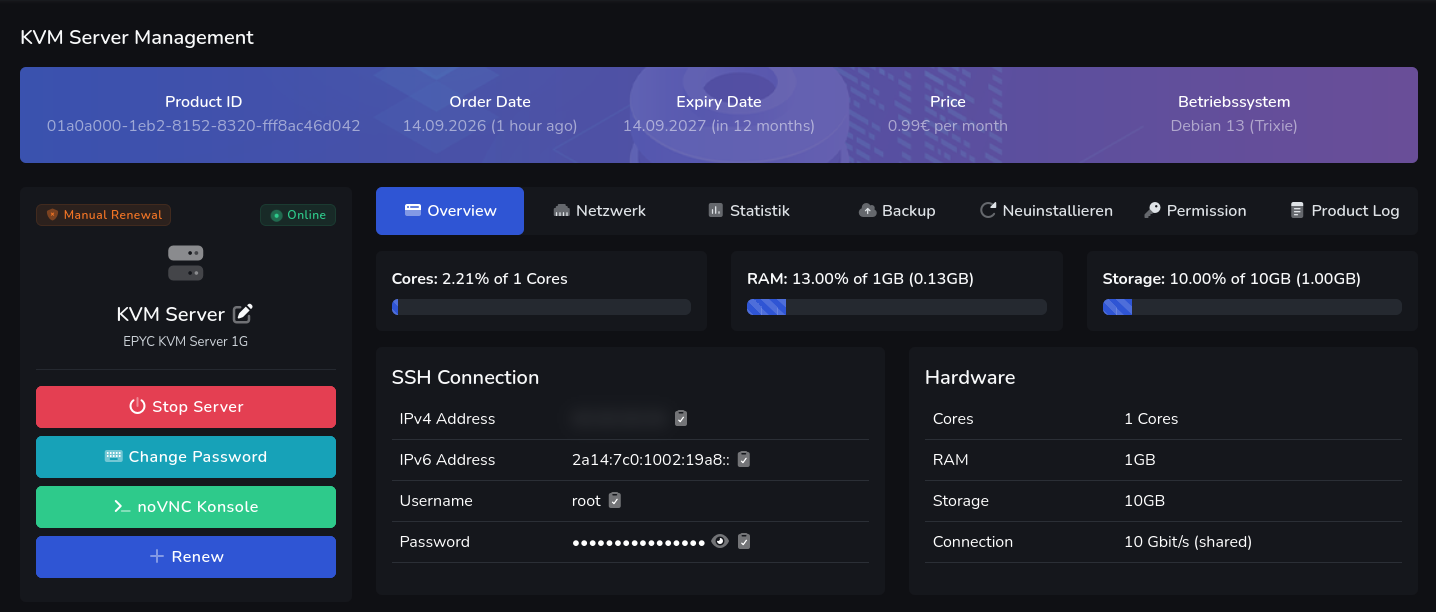
VPS EPYC KVM Server 1G

- 1 vCPU Cores
- 1 GB RAM
- 10 GB Nvme
- IPv4: AUCUNE
- IPv6: 2a14:7c0:1002:19a8::
- Gateway: 2a14:7c0:1000::
- OS: Debian 13
On se connecte en root sur le VPS
1
ssh root@2a14:7c0:1002:19a8::
Date et heure + Synchro
Activer le fuseau Europe/Paris
1
timedatectl set-timezone Europe/Paris
Horloge système synchronisée : timedatectl
1
2
3
4
5
6
7
               Local time: Mon 2026-09-14 15:33:09 CEST
           Universal time: Mon 2026-09-14 13:33:09 UTC
                 RTC time: Mon 2026-09-14 13:33:09
                Time zone: Europe/Paris (CEST, +0200)
System clock synchronized: yes
              NTP service: active
          RTC in local TZ: no
Reconfigurer locales
Activer uniquement en_US.UTF-8 et fr_FR.UTF-8
1
dpkg-reconfigure locales
Default en_US.UTF-8
1
2
3
Generating locales (this might take a while)...
  fr_FR.UTF-8... done
Generation complete.
Motd
Motd (ASCII Small Mono 12 )
1
nano /etc/motd
1
2
3
4
5
6
7
8
9
10
11
12
13
14
15
16
17
18
19
20
21
 ▗▄▖ ▗▖        █               ▗▖ ▗▖▗▄▄▖  ▗▄▖    ▄▄▄▗▄▄▖ ▗▖ ▗▖▗▄▖
▗▛▀▜ ▐▌        ▀               ▝█ █▘▐▛▀▜▖▗▛▀▜    ▀█▀▐▛▀▜▖▝█ █▘█▀▜
▐▙   ▐▌▟▛ █▟█▌██  ▐█▙█▖ ▟█▙     █ █ ▐▌ ▐▌▐▙       █ ▐▌ ▐▌ █ █▐▌▄▖
 ▜█▙ ▐▙█  █▘   █  ▐▌█▐▌▐▙▄▟▌    █ █ ▐██▛  ▜█▙     █ ▐██▛  █ █▐█▀█▖
   ▜▌▐▛█▖ █    █  ▐▌█▐▌▐▛▀▀▘    ▐█▌ ▐▌      ▜▌    █ ▐▌    ▐█▌▐▌ ▐▌
▐▄▄▟▘▐▌▝▙ █  ▗▄█▄▖▐▌█▐▌▝█▄▄▌    ▐█▌ ▐▌   ▐▄▄▟▘   ▄█▄▐▌    ▐█▌▝█▄█▘
 ▀▀▘ ▝▘ ▀▘▀  ▝▀▀▀▘▝▘▀▝▘ ▝▀▀     ▝▀▘ ▝▘    ▀▀▘    ▀▀▀▝▘    ▝▀▘ ▝▀▘
▗▄▄       ▗▖     █                ▗▄   ▄▄▖
▐▛▀█      ▐▌     ▀                ▛█  ▐▀▀█▖
▐▌ ▐▌ ▟█▙ ▐▙█▙  ██   ▟██▖▐▙██▖     █     ▟▌
▐▌ ▐▌▐▙▄▟▌▐▛ ▜▌  █   ▘▄▟▌▐▛ ▐▌     █   ▐██
▐▌ ▐▌▐▛▀▀▘▐▌ ▐▌  █  ▗█▀▜▌▐▌ ▐▌     █     ▜▌
▐▙▄█ ▝█▄▄▌▐█▄█▘▗▄█▄▖▐▙▄█▌▐▌ ▐▌   ▗▄█▄▖▐▄▄█▘
▝▀▀   ▝▀▀ ▝▘▀▘ ▝▀▀▀▘ ▀▀▝▘▝▘ ▝▘   ▝▀▀▀▘ ▀▀▘
 ▄▄▖       ▗▄  ▗▄▗▄▄▄▖     ▗▄▖   ▗▄  ▗▄▖  ▗▄▖ ▄▄▖   ▗▄  ▗▄▖       ▗▄▖
▐▀▀█▖      ▛█  ▟█▝▀▀█▌     █▀█   ▛█  █▀█  █▀█▐▀▀█▖  ▛█ ▗█▀█▖     ▗█▀█▖
   ▐▌ ▟██▖  █ ▐▘█▄ ▗█ ▟██▖▐▌ ▐▌▄  █ ▐▌ ▐▌▐▌ ▐▌  ▐▌▄  █ ▐▌ ▐▌ ▟██▖▐▙ ▟▌▄▄
  ▗▛  ▘▄▟▌  █▗▛ ██ ▐▌▐▛  ▘▐▌█▐▌█  █ ▐▌█▐▌▐▌█▐▌ ▗▛ █  █ ▝█▄█▌ ▘▄▟▌ ███ ██
 ▗▛  ▗█▀▜▌  █▐███▌ █ ▐▌   ▐▌ ▐▌   █ ▐▌ ▐▌▐▌ ▐▌▗▛     █  ▝▀▐▌▗█▀▜▌▐▛ ▜▌
▗█▄▄▖▐▙▄█▌▗▄█▄▖ ██▐▌ ▝█▄▄▌ █▄█ █▗▄█▄▖█▄█  █▄█▗█▄▄▖█▗▄█▄▖▙▄█ ▐▙▄█▌▝█▄█▘██
▝▀▀▀▘ ▀▀▝▘▝▀▀▀▘ ▀▀▀   ▝▀▀  ▝▀▘ ▀▝▀▀▀▘▝▀▘  ▝▀▘▝▀▀▀▘▀▝▀▀▀▘▝▀▘  ▀▀▝▘ ▝▀▘ ▀▀
Créer un utilisateur
créer le premier utilisateur avec mot de passe
1
adduser skim
Ajout à sudoers
1
2
3
apt install sudo   # installé par défaut
#
echo "skim     ALL=(ALL) NOPASSWD: ALL" >> /etc/sudoers.d/10-skim
Pour lire le journal système
1
usermod -a -G adm skim
Hostname
1
hostnamectl
1
2
3
4
5
6
7
8
9
10
11
12
13
14
15
 Static hostname: vm9471
       Icon name: computer-vm
         Chassis: vm 🖴
      Machine ID: 7ad5bfee2fd84522a0cffd4bd115bbe4
         Boot ID: 0ffd571b93f3496f9e5d9bc852d38078
    Product UUID: 7ad5bfee-2fd8-4522-a0cf-fd4bd115bbe4
  Virtualization: kvm
Operating System: Debian GNU/Linux 13 (trixie)
          Kernel: Linux 6.12.107+deb13-cloud-amd64
    Architecture: x86-64
 Hardware Vendor: QEMU
  Hardware Model: Standard PC _i440FX + PIIX, 1996_
Firmware Version: rel-1.17.0-0-gb52ca86e094d-prebuilt.qemu.org
   Firmware Date: Tue 2014-04-01
    Firmware Age: 12y 5month 2w
Redémarrage VPS
Redémarrer le VPS
1
systemctl reboot
OpenSSH, clé et script
A - Ordinateur de bureau
Générer une paire de clé curve25519-sha256 (ECDH avec Curve25519 et SHA2) pour une liaison SSH avec le serveur.
1
ssh-keygen -t ed25519 -o -a 100 -f ~/.ssh/skrime-ed25519
Envoyer les clés publiques sur le serveur KVM
1
ssh-copy-id -i ~/.ssh/skrime-ed25519.pub skim@2a14:7c0:1002:19a8::
B - Serveur KVM
On se connecte via SSH
1
ssh skim@2a14:7c0:1002:19a8::
Modifier la configuration serveur SSH dans le VPS
1
sudo nano /etc/ssh/sshd_config.d/10-skim.conf
Ajouter
1
2
3
4
Port 51002
PasswordAuthentication no
PermitRootLogin no
X11Forwarding no
Relancer le serveur
1
sudo systemctl restart sshd
Test connexion depuis ordinateur de bureau
1
ssh -p 51002 -i ~/.ssh/skrime-ed25519 skim@2a14:7c0:1002:19a8::
Historique de la ligne de commande
Ajoutez la recherche d’historique de la ligne de commande au terminal Se connecter en utilisateur debian Tapez un début de commande précédent, puis utilisez shift + up (flèche haut) pour rechercher l’historique filtré avec le début de la commande.
1
2
3
# Global, tout utilisateur
echo '"\e[1;2A": history-search-backward' | sudo tee -a /etc/inputrc
echo '"\e[1;2B": history-search-forward' | sudo tee -a /etc/inputrc
Outils
Installer les outils
1
2
sudo apt update
sudo apt install rsync jq
Parefeu UFW
Installation Debian / Ubuntu
1
sudo apt install ufw
Pour faire gérer IPv6 par UFW uniquement, activez IPv6 dans UFW, puis désactivez la partie IPv4 d’UFW.
Éditez la configuration :
1
sudo nano /etc/default/ufw
Vérifiez ou modifiez :
1
IPV6=yes
Désactivez UFW avant de modifier ses règles :
1
sudo ufw disable
Les règles
1
2
sudo ufw allow 51002/tcp  # port SSH
sudo ufw allow https      # port 443
Activer le parefeu
1
sudo ufw enable
Command may disrupt existing ssh connections. Proceed with operation (y|n)? y
Firewall is active and enabled on system startupVérifier : sudo ufw status
1
2
3
4
5
6
7
8
Status: active

To                         Action      From
--                         ------      ----
51002/tcp                  ALLOW       Anywhere
443                        ALLOW       Anywhere
51002/tcp (v6)             ALLOW       Anywhere (v6)
443 (v6)                   ALLOW       Anywhere (v6)
Agent beszel
Lien Agent beszel VPS IPV6 only
chirpy.xoyize.xyz
Zone DNS OVH xoyize.xyz
Ajout IPV6 domaine chirpy.xoyize.xyz
1
2
3
4
5
6
7
8
9
$TTL 3600
@	IN SOA dns106.ovh.net. tech.ovh.net. (2089402221 86400 3600 3600000 60)
        IN NS     dns106.ovh.net.
        IN NS     ns106.ovh.net.
        IN A     164.132.198.38
        IN AAAA     2001:41d0:404:200::7ec4
*        IN A     164.132.198.38
*        IN AAAA     2001:41d0:404:200::7ec4
chirpy        IN AAAA     2a14:7c0:1002:19a8::
Caddy
Installer serveur caddy
1
sudo apt install caddy
On va créer un dossier local
1
2
sudo mkdir -p /srv/media/chirpy
sudo chown $USER:$USER /srv/media/chirpy
Dans le fichier de configuration /etc/caddy/Caddyfile, ajouter les lignes suivantes
1
2
3
4
chirpy.xoyize.xyz {
root * /srv/media/chirpy/
file_server
}
Redémarrer le serveur
1
sudo systemctl restart caddy